How to Use an Android TV Emulator on PC: 3 Best Options
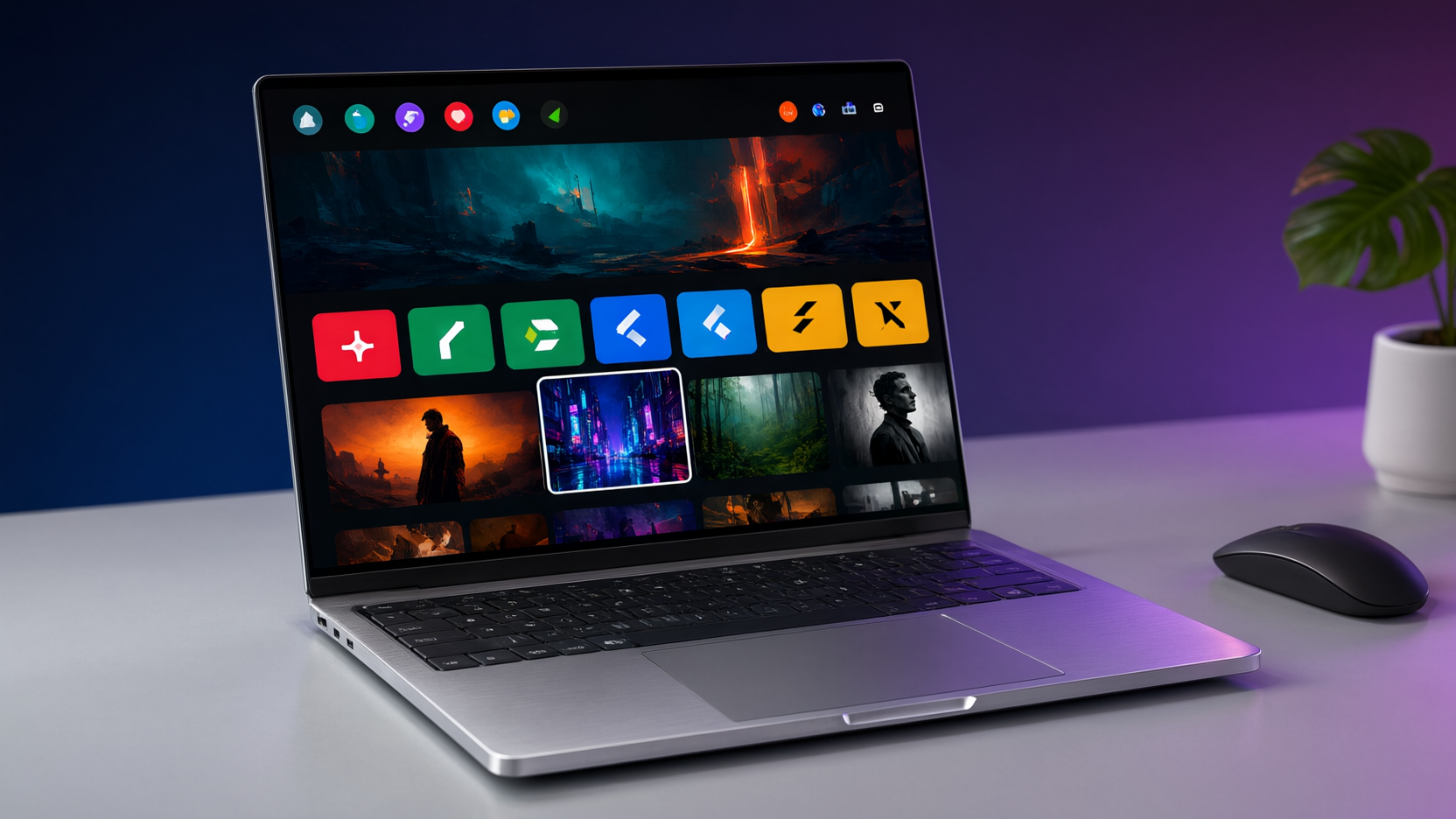
Learn how to use an Android TV emulator on PC with our step-by-step guide. Discover the best options, setup tips, and FAQs for testing apps and streaming.
One-line takeaway: An Android TV emulator for PC lets you test apps, watch content, and explore the Android TV interface without buying a dedicated device.
Ever wanted to try Android TV without buying a box? Or maybe you're a developer wanting to test your app on a big screen? An Android TV emulator for PC is the answer. It simulates the Android TV operating system right on your computer, giving you the full experience—apps, settings, and even streaming—without any extra hardware.
In this guide, I'll walk you through the best Android TV emulators for PC, how to set them up, and what you can actually do with them. Whether you're a curious user or a developer, you'll find practical steps and honest advice.
Why Use an Android TV Emulator on PC?
There are several reasons you might want an emulator:
- Testing apps: Developers can check compatibility and UI on a TV-sized screen without a physical device.
- Trying before buying: Curious about Android TV but not ready to invest? An emulator lets you explore the interface and features for free.
- Streaming: Some emulators support streaming apps, so you can watch live TV or movies on your PC as if you had an Android TV.
- Learning: It's a great way to familiarize yourself with Android TV if you're planning to get a device later.
If you're new to Android TV, you might want to check our beginner's guide to Android TV first to understand the basics.
Best Android TV Emulators for PC
Not all emulators are created equal. Here are the top three that actually work well in 2026.
1. Android Studio's Built-in Emulator
Google's official Android Studio includes an emulator that supports Android TV images. It's the most reliable option, especially for developers, because it's maintained by Google and offers the latest Android TV versions.
How to set it up:
- Download and install Android Studio.
- Open Android Studio, go to Tools > SDK Manager, and install the Android TV system image (e.g., Android TV x86).
- Create a new virtual device: select “TV” as the device type and choose the Android TV image.
- Start the emulator—it will boot into the Android TV interface.
Pros: Free, official, supports Google Play services, and includes a remote control interface that mimics the actual Android TV remote.
Cons: Resource-intensive, requires Android Studio (a bit heavy for casual users), and setup can be confusing for beginners.
2. Genymotion
Genymotion is a third-party Android emulator that offers Android TV virtual devices. It's popular among developers for its performance and ease of use.
How to set it up:
- Download Genymotion (there's a free version for personal use).
- Install and sign in.
- In the Genymotion Device Manager, click “Add” and choose a device with the “Android TV” version (e.g., Android 10 or 11).
- Start the device—it boots into Android TV.
Pros: Faster than Android Studio's emulator, easier to set up, and offers cloud-based options.
Cons: The free version is limited (personal use only), and some advanced features require a paid license.
3. BlueStacks (with Android TV Mode)
BlueStacks is primarily a phone emulator, but it has a feature that lets you run Android TV apps in a TV-like interface. It's not a perfect emulator, but it's a quick way to try TV apps on your PC.
How to set it up:
- Download and install BlueStacks.
- Open BlueStacks and go to Settings.
- Look for “Device Profile” or “Display” settings and select a TV-like resolution (e.g., 1920x1080).
- Install TV apps from the Play Store—they'll run in a full-screen mode that mimics Android TV.
Pros: Simple, works with many apps, and uses a familiar interface.
Cons: Not a true Android TV emulator—it's a phone emulator with a TV theme, so some TV-specific features (like the leanback UI) may not work perfectly.
If you're mainly interested in streaming, you might not even need a full emulator. Services like Playly TV offer apps that run on Windows PC directly, so you can watch live TV and sports without any emulator. But for testing apps or getting the exact Android TV experience, the emulators above are your best bet.
What Can You Do with an Android TV Emulator?
Once you have an emulator running, you can:
- Install apps from the Google Play Store (if you use Android Studio or Genymotion with Google Play).
- Sideload APKs to test apps not available on the Play Store. Our guide on installing apps on Android TV applies here too.
- Stream content from apps like Netflix, YouTube, or Playly TV. Note: some streaming apps may have DRM restrictions that prevent them from working on emulators.
- Test your own apps in a TV environment, including using the D-pad navigation and remote controls.
If you're planning to use the emulator for streaming, be aware that performance depends on your PC's specs. A decent CPU and at least 8GB of RAM are recommended.
Tips for a Smooth Emulator Experience
- Enable hardware acceleration in your BIOS and in the emulator settings to improve performance.
- Use a wired internet connection to avoid buffering when streaming—our buffering fixes can help if you run into issues.
- Allocate enough RAM to the emulator (at least 2GB) to prevent lag.
- Use the virtual remote that comes with the emulator to navigate like a real Android TV remote.
Frequently Asked Questions
Can I watch Netflix on an Android TV emulator?
Yes, but with limitations. Netflix may not play in HD due to Widevine DRM restrictions on emulators. You can still watch in SD, but for the best experience, consider using a dedicated streaming app on your PC.
Is an Android TV emulator legal?
Yes, using an emulator is legal. However, downloading apps that are paid or subject to copyright may violate terms of service. Always use apps legally.
Which emulator is best for developers?
Android Studio's built-in emulator is the most accurate for testing because it uses official system images. Genymotion is also good and faster, but may have slight differences.
Can I use an Android TV emulator on a low-end PC?
It will be slow. Emulators require a decent CPU and GPU. If your PC is weak, try the Genymotion cloud or use BlueStacks with lower resolution settings.
Do I need an Android TV box if I have an emulator?
Not necessarily. An emulator can replace a physical box for testing and casual use. But for a dedicated TV experience with better performance, a real device is still recommended.