How to Cast to Android TV from Your Phone
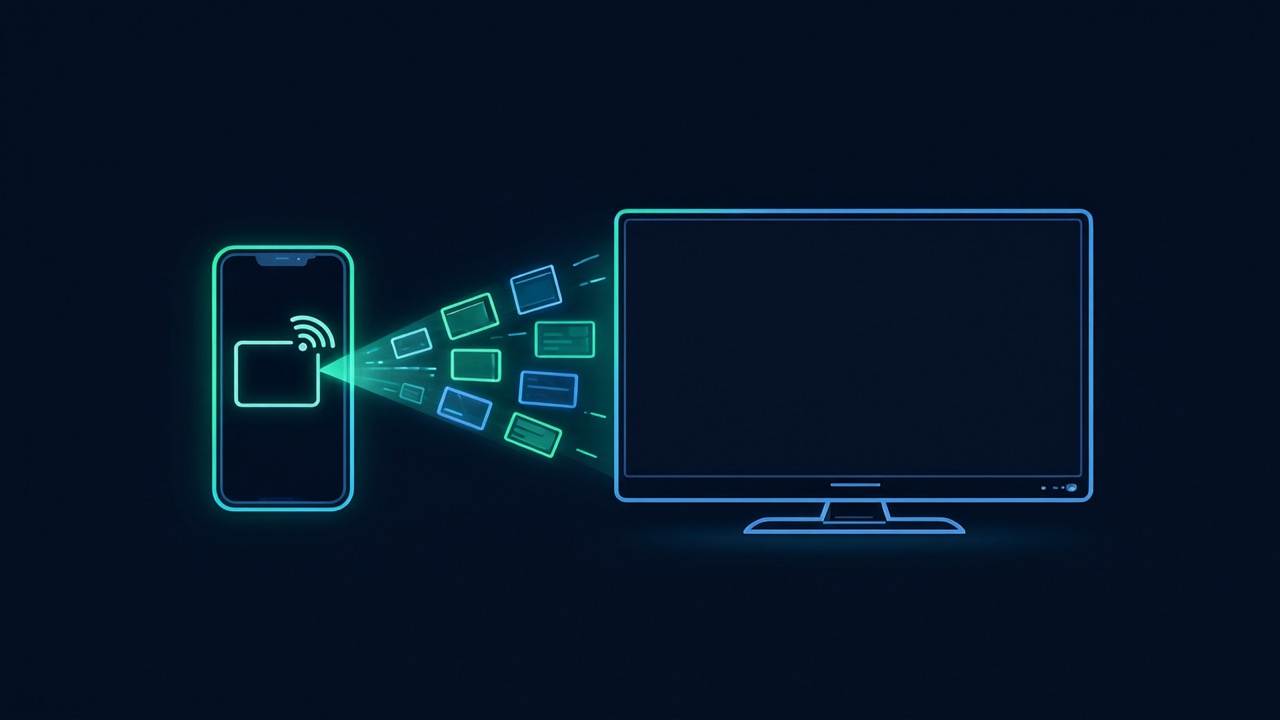
Learn how to cast from Android to TV, mirror your screen, and fix casting issues. Step-by-step guide for Android casting to TV, including photos, videos, and apps.
Casting lets you start something on your phone and watch it on the TV — a video, a holiday photo album, or your entire screen. Android TV has casting built in, so there is nothing extra to buy. Here is how to cast to Android TV from your phone, and what to do when it won't connect.
Before you start
Two things matter: your phone and your Android TV must be on the same Wi-Fi network, and the app you're casting from needs to support casting (most major video and music apps do). If you're setting up a new device first, see our Android TV setup guide.
Cast a video or song from an app
- Open a cast-enabled app on your phone (a video or music app).
- Start playing something, then tap the Cast icon (a small screen with waves in the corner).
- Choose your Android TV from the list.
- Playback jumps to the TV — your phone becomes the remote, so you can pause, skip and adjust volume from it.
Cast your entire phone screen
To mirror everything on your phone — apps, photos, even games:
- On most Android phones, open Quick Settings and tap Cast (sometimes called Screen Cast or Smart View).
- Select your Android TV.
- Whatever is on your phone now appears on the TV until you stop casting.
Screen mirroring is perfect for showing photos, presentations or an app that doesn't have its own cast button.
Cast photos and videos from your gallery
Want to show off your latest photos or a home video on the big screen? You don't need a special app — Android's built-in casting works directly from your gallery:
- Open the Google Photos app (or your phone's gallery app if it supports casting).
- Select a photo or video, then tap the Cast icon.
- Choose your Android TV, and the media will appear on the TV. You can swipe through photos or play videos right from your phone.
This is one of the easiest ways to cast photos from Android to TV, and it works with most modern Android phones.
When casting won't connect
- TV not appearing: confirm both devices are on the same Wi-Fi (not a separate guest network).
- Cast icon missing: that app may not support casting — try screen mirroring instead.
- Connection drops: a weak signal is usually to blame; move closer to the router or use a mesh point. Persistent stutter? See how to fix buffering on Android TV.
- Still stuck: restart the phone, the TV and the router — it clears most casting glitches.
Alternative: Use your phone as a remote
If casting isn't working or you prefer a more stable connection, you can use your phone as a remote for your Android TV. This lets you control apps installed directly on the TV, which can be smoother than casting. Learn more in our guide to using your phone as an Android TV remote.
Casting vs a dedicated app
Casting is great for quick, occasional viewing. For anything you watch regularly — live TV, sports, a film every night — a proper app installed directly on the TV is smoother and doesn't tie up your phone. Our beginner's guide explains the difference.
Frequently Asked Questions
How do I cast to Android TV from my phone?
Open a cast-enabled app, tap the Cast icon and select your Android TV — both devices must be on the same Wi-Fi network.
Can I mirror my whole phone screen?
Yes. Open Quick Settings on your phone, tap Cast (or Smart View) and choose your TV to mirror everything.
Why won't my phone find the TV?
Almost always because they're on different Wi-Fi networks. Put both on the same network and try again.
How do I cast photos from my Android phone to the TV?
Use Google Photos or a gallery app that supports casting. Open the photo, tap the Cast icon, and select your TV.
Can I cast from Android to TV without Wi-Fi?
Most casting methods require Wi-Fi. If you don't have Wi-Fi, consider using a wired connection like HDMI or a Chromecast with Ethernet adapter.
What does the Cast icon look like?
It's a small rectangle with a Wi-Fi-like symbol in the corner. It appears in apps that support casting, usually near the play controls.
Skip the casting, get the app
For everyday live TV, sports and movies, a dedicated app beats casting. Playly TV runs directly on Android TV — no activation code, no set-top box. See the plans.