Why Your Video Keeps Buffering (and Why It's Rarely Your Wi-Fi)
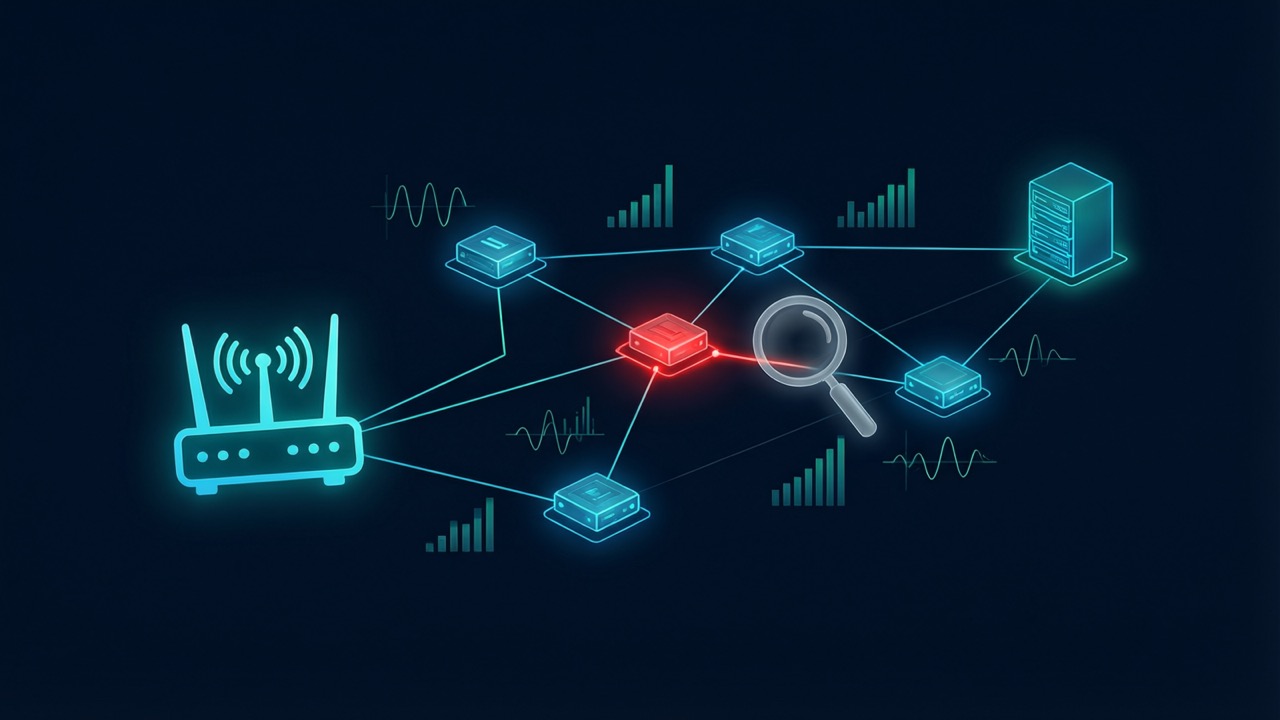
Buffering isn't always slow internet. Use AI to run a layer-by-layer check — bandwidth, routing, server reachability and codecs — and find the real cause and fix.
One-line takeaway: next time your video stalls, don't rush to blame your broadband or reboot the router. Spend five minutes letting an AI assistant run a proper, layer-by-layer diagnosis — and you'll often find that smooth playback and "fast internet" are two very different things.
The myth we all believe about "internet speed"
Almost everyone's first reaction to a buffering video is the same: "My internet must be slow." So you open a speed-test site, see a number — say, 50 Mbps down — and get more confused: that isn't slow, so why is this video still spinning?
Here's the catch. A single speed-test number only tells you how fast your connection is to that one test server. It can't answer the question that actually matters: "Why is this specific service, right now, so slow for me?"
Between those two things sits a whole stack of invisible factors: latency, routing, where the server lives, whether it's throttling you, which machine the video is really coming from, even the video's codec. Any one of them can show up as "buffering" — but each has a completely different fix. You can't fix this by guessing. You need to diagnose it — and diagnosis is something AI is remarkably good at.
Why AI is well-suited to this job
A modern AI assistant — especially one that can run terminal commands — can peel the problem apart like a network engineer would, one layer at a time. It can do far more than "run a speed test":
- Measure real bandwidth, latency and jitter — not just a download figure, but whether latency is high or unstable, and whether you have bufferbloat (latency that spikes the moment the line gets busy — a classic cause of video hitches).
- Trace where the data actually comes from — many services redirect you to a CDN edge node. AI can follow the redirects and see which server, in which region, you're really connecting to.
- Test whether one specific server is reachable — not "is my network OK" in general, but "can I actually reach this machine that's sending me the video."
- Separate the root causes — is it bandwidth? latency? throttling? a regional or IP block? or not a network issue at all, but a player that can't decode the video?
That last point is the key. AI can take a pile of symptoms that all look like "buffering" and split them into problems with completely different causes. Once you know which one you've got, the fix is obvious.
The four layers of an AI diagnosis (outside-in)
You can hand this exact approach to an AI and have it test each layer in turn.
Layer 1: Is your broadband actually fast enough?
Rule out the basics first. Have the AI measure your real download speed and latency (macOS has a built-in networkQuality tool; Windows and Linux have equivalents). This is where the first plot twist often appears: many people's real-world speed is far below what they pay for, or the bandwidth is fine but latency and jitter are terrible. If latency spikes under load (bufferbloat), video will "play a few seconds, then stall" — and buying more bandwidth won't help. The fix lives in your router's QoS settings or a better line.
Layer 2: Which server is the video actually coming from?
If bandwidth checks out, go deeper. Have the AI request the resource you're trying to watch and see whether it gets redirected. Many services don't stream from the machine you logged into — they hand you off to a CDN edge server that could be on the other side of the planet, or simply unwelcoming to your region. This step debunks a common illusion: "I can log in and see the channel list, so my connection is fine." Not necessarily. Logging in uses one server; streaming the video uses another. One working doesn't mean the other does.
Layer 3: Can you even reach the server that streams the video?
This is the most important step, and the one most often skipped. Have the AI test reachability of the target server directly — for example, probing whether its port responds. The result is usually blunt:
- If even the TCP handshake times out, that's not "slow" — it's "can't connect at all." No amount of bandwidth or swapping players will help, because the data can't reach you. This usually means your IP is blocked, or the route from your line to that machine is broken (common when a proxy or VPN is taking a long detour).
- If you can connect but the speed is pinned very low, the server is throttling you — again, not your broadband's fault.
Layer 4: Connected and fast — so maybe it isn't the network at all?
If the first three layers look fine but the video is still black or frozen, the problem probably isn't the network — it's the player. The classic culprit is an incompatible codec: a lot of 4K/UHD content uses HEVC (H.265), which some browser-based players simply can't decode. You get a black screen or a "codec unsupported" message. Switch to a native player like VLC, IINA or mpv and it plays — with nothing whatsoever to do with your internet speed.
The payoff: from guessing to a real diagnosis
Run all four layers and the AI hands you, instead of a vague "your internet is slow," a clear diagnostic table:
| Symptom | Real cause | The actual fix |
|---|---|---|
| Buffers across the board | Real bandwidth below par, or bufferbloat | Upgrade bandwidth; enable router QoS |
| Logs in and browses fine, stalls on play | The edge server streaming the video is unreachable | Change line / change exit IP / ask your provider for another node |
| Connects, but the speed is tiny | Server-side throttling | Switch service or time of day — not a local problem |
| Black screen but the network is fine | Incompatible codec | Switch to VLC / IINA / mpv |
Same "buffering," four causes, four fixes. Confuse them and you'll waste money upgrading bandwidth and endlessly rebooting the router. Tell them apart and you'll know exactly what to touch in five minutes. For the device-specific angle, see our guides on fixing buffering on Android TV and what to do when your Android TV is slow.
You can do this yourself
You don't need to know the command line. You only need to:
- Find an AI assistant that can run — or walk you through — diagnostic commands.
- Describe the problem clearly: "Video X keeps buffering. Help me diagnose it layer by layer: bandwidth, latency, server reachability, and codec."
- Follow its prompts step by step and let it interpret each result for you.
It will translate the output of tools like networkQuality (bandwidth and latency), ping (latency and packet loss), curl (redirects and real transfer speed) and a simple port probe (is the server reachable) into plain English — and tell you which layer the problem is on and how to fix it.
The bottom line
"Slow internet" is the most over-used scapegoat of our era. The truth is that bandwidth is often innocent — the real cause of buffering may be hiding in latency, routing, server-side throttling, regional blocks, or even your player's codec support. Instead of staring at a speed-test number, let AI give you a real check-up. From guessing, to testing, to a diagnosis — that's how you actually solve the problem.
And if you'd rather not fight any of this in the first place: a well-run streaming service keeps its servers close, fast and reachable, so buffering rarely happens at all. That reliability is exactly what Playly TV is built for — and if you're weighing up providers, our buyer's guide to choosing a service covers what to look for.