How to Watch TV on a MacBook (Live + On-Demand): The Complete 2026 Guide

Watch live TV and on-demand movies on your MacBook — no cable, no complicated setup. A plain-English guide using IPTVnator and VLC, with M3U and Xtream Codes explained.
Your Mac doesn't come with a built-in "TV" app for live channels — and that trips a lot of people up. The good news: watching live TV and on-demand movies on a MacBook is genuinely easy once you know the three pieces involved. By the end of this guide you'll have live channels, movies and series playing on your Mac, using free software and a playlist from your own service. No cable box, no terminal wizardry required.
What you'll need to watch TV on a MacBook
Three things, that's it:
- A Mac — any modern MacBook, iMac or Mac mini works.
- A playlist source — either an M3U link or an Xtream Codes account, which you get from your TV service.
- A player app — we'll use IPTVnator (free), with VLC as a backup.
What is an M3U link?
Think of an M3U as a "channel list in a web address." It's a single URL your service gives you that contains all your channels and on-demand content. You paste it into a player, and the player fills up with everything you can watch. That's the whole idea.
What is Xtream Codes?
Xtream Codes is just another way to log in. Instead of one long M3U link, your service gives you three things: a server URL, a username and a password. Some players prefer this method because it keeps live TV, movies and series neatly organised. Same content — different way of connecting.
Method 1 (recommended): Watch with IPTVnator
IPTVnator is a free, open-source Mac IPTV player with a clean, Netflix-style layout. It's the easiest place to start.
How to install IPTVnator
Two ways, pick whichever suits you:
- The easy click-and-download way: open the official IPTVnator releases page (github.com/4gray/iptvnator), download the
.dmgfor Mac, open it, and drag the app into your Applications folder. Done. - The Homebrew one-liner: if you already use Homebrew, open Terminal and run:
That downloads and installs it for you.brew install --cask iptvnator
The first time you open it, macOS may warn that it's from the internet — right-click the app and choose Open to confirm, and you won't be asked again.
How to import your channels
On the welcome screen you'll see a few ways to add a source — M3U URL, M3U file, Xtream credentials, and more. Here are the two you'll actually use.
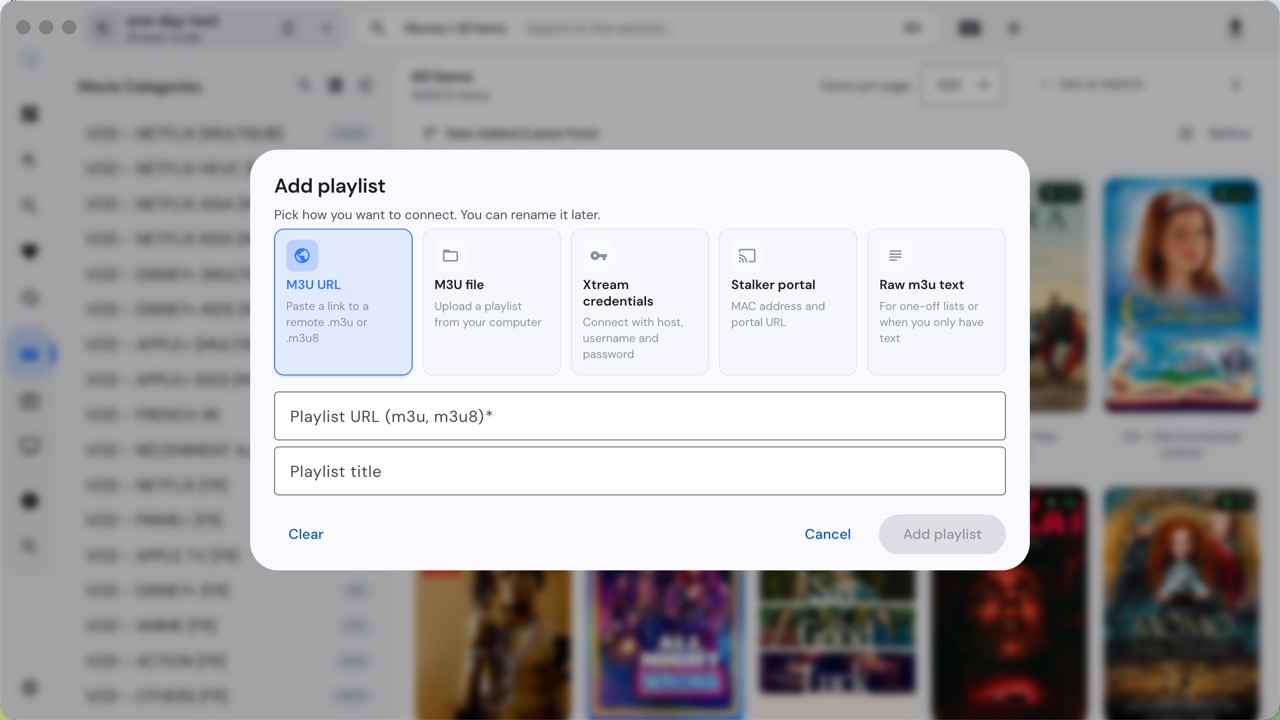
If you have an M3U link:
- Click Add via URL.
- In the URL box, paste the full M3U link from your service.
- Give it a name (anything, e.g. "My TV") and click Save / Add.
If you have an Xtream Codes account:
- Click Add via Xtream Codes.
- Server URL: paste the address your service gave you (it usually starts with
http://and ends in a port number like:8080). - Username and Password: type exactly what your service provided.
- Click Save. IPTVnator connects and loads your content.
How to browse and watch
Once it loads, the left side shows your categories (Sports, News, Movies, Series, and so on). Click a category to see what's inside, then click any channel to start live TV. For on-demand, open the Movies or Series section, pick a title, and press play. Use the search box at the top to jump straight to a channel or show by name.
Method 2 (backup): Open your M3U in VLC
If you'd rather not install anything new — or you just want a quick test — VLC can play an M3U link directly. VLC is the famous free player almost everyone already has.
- Open VLC.
- In the top menu, click File → Open Network.
- Paste your M3U link into the box and click Open.
- VLC loads the list; open View → Playlist to see all your channels and click any one to watch.
VLC is rock-solid for playback, but it has no fancy categories or artwork — that's why IPTVnator is nicer for everyday use.
Troubleshooting: common problems and fixes
It says "Failed to fetch the playlist"
This almost always means the link or login is off, not that your Mac is broken. Check that you pasted the entire M3U URL (they're long — it's easy to miss the end), that there are no stray spaces, and that your Xtream server URL, username and password match exactly. If it still fails, your subscription may have expired or the server may be down — ask your provider.
The picture keeps buffering or spinning
Buffering is nearly always a bandwidth or line issue, not the app. Quick self-checks: run a speed test on your Mac; try a lower-quality version of the same channel; connect over Ethernet or move closer to your Wi-Fi router; and see whether other streaming (YouTube, Netflix) also struggles. If everything else is smooth but one channel stutters, that specific channel's server is the bottleneck — try it again later.
It says "codec unsupported" or the audio/video won't play
Many 4K channels use HEVC (H.265), a newer format some players can't decode. The fix is simple: open that channel in VLC or IINA instead — both bundle the codecs and will play HEVC without any extra downloads.
Live TV works but movies don't (or vice-versa)
This is normal. Live TV and on-demand often run on two different servers behind the scenes. If one type connects and the other doesn't, it's usually a temporary issue with that one server — not your setup. Wait a bit, or let your provider know which side is down.
Picture quality vs internet speed
Higher quality needs more bandwidth. Match the quality you choose to the speed you actually have:
| Quality | Recommended download speed |
|---|---|
| SD (standard) | 2–3 Mbps |
| 720p HD | 4–5 Mbps |
| 1080p Full HD | 8 Mbps |
| 4K UHD | 25 Mbps+ |
If your connection is on the slower side, pick 720p or 1080p rather than 4K — a stable stream beats a sharper one that keeps stopping.
Wrapping up
That's all there is to it: install IPTVnator (or fall back to VLC), add your M3U link or Xtream Codes login, pick a category, and watch. The software is free; the only thing that decides how good the experience feels is the quality of the source behind it. If you want a stable, well-maintained service to point these players at, take a look at Playly TV — and if you're new to choosing a provider, our buyer's guide to picking an Android TV or IPTV service walks through what to look for.
Related: How to Use an Android TV Emulator on PC: 3 Best Options